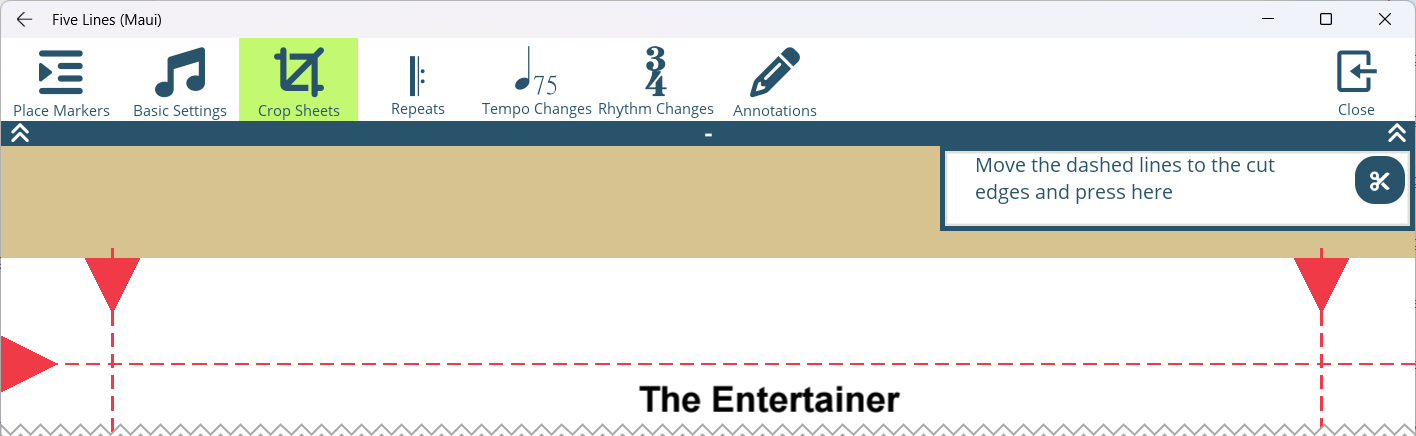
To make the most of your screen space, you can crop the pages of your songs.
- With a song opened, tap on Crop Sheets
 in the top toolbar.
 - Drag the dotted red lines to adjust the cropping area. Do this for all pages you want to crop.
- Once you are satisfied with the cropping area, tap on the
 button to apply the cropping.
 - In case you have missed a page to crop or want to adjust the cropping area again, you can undo the cropping by tapping on the
 button. Then you can adjust the cropping area again and press the button to apply the changes.
Note: If you have placed staff markers, you cannot drag the lines beyond the staff markers. If it is not possible to move a boundary, check if staff markers are in the way.