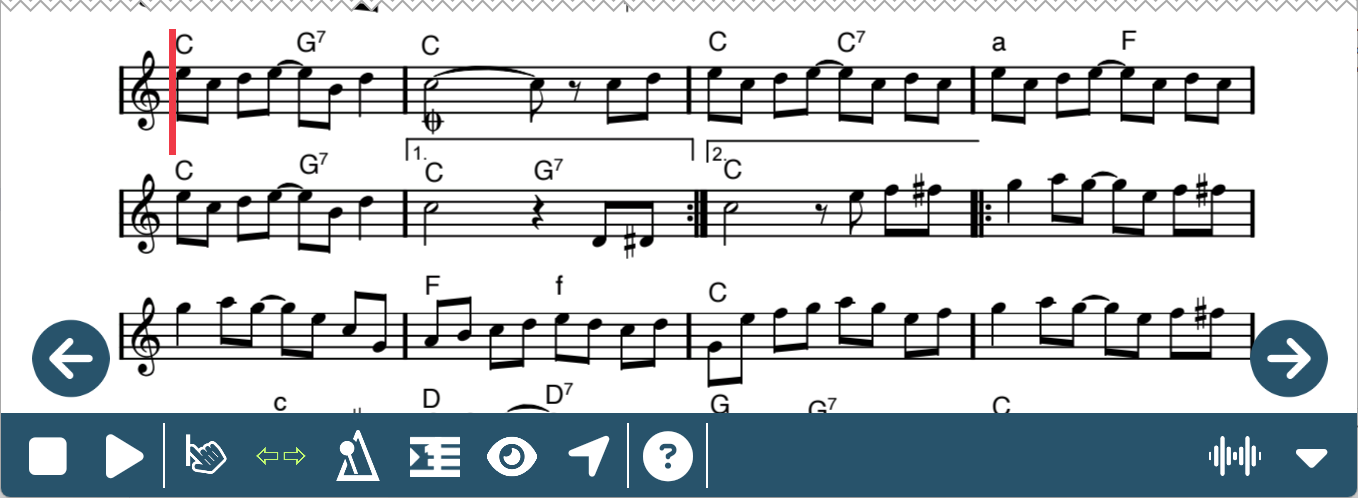
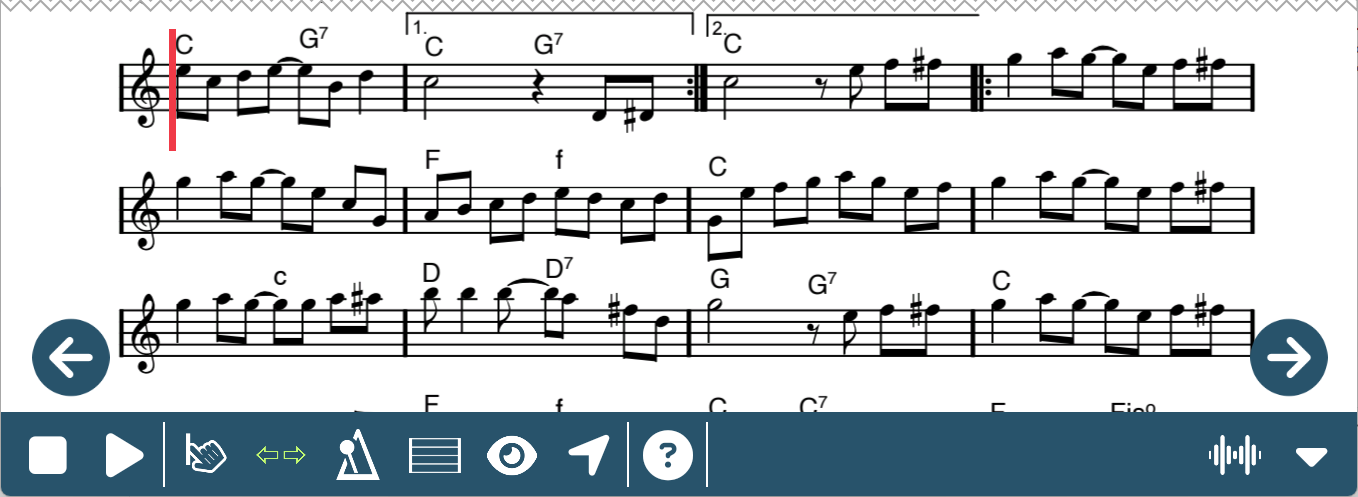
With a fully marked up score you can take advantage of additional features.
Navigation By Stave or Bar
When tapping on the Scroll mode button in the lower toolbar you have now additional options:
 Scroll by line. Tapping on the left and right on-screen buttons navigates one line forward or back. The same applies of course when using a foot pedal.
 Scroll by bar. Tapping on the left and right on-screen buttons navigates one bar forward or back.
Jump to a Bar
Tap on the  button in the lower toolbar first and then tap on the bar in the score you want to jump to. The cursor is then placed at the beginning of the selected bar. This also works while playing. The metronome or audio playback will always follow the cursor.
Loops
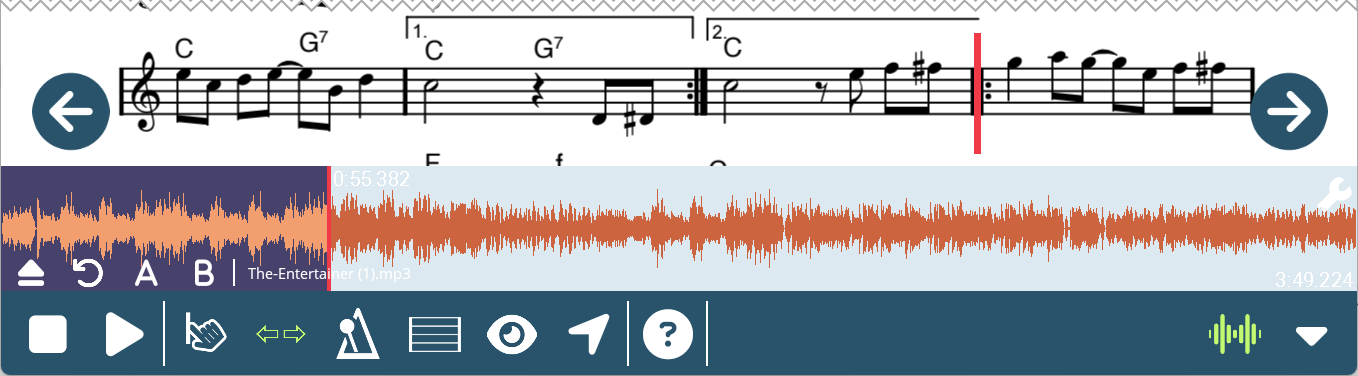
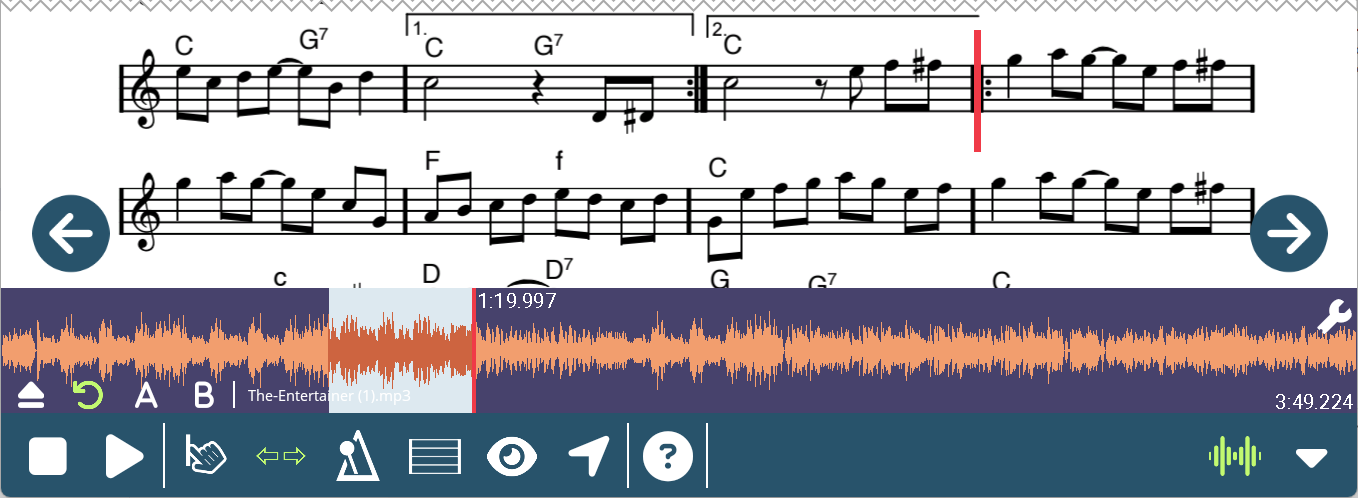
You can practice a section of the score by setting loop points.
- Tap on
 in the lower toolbar to open the timeline of the song.
 - Place the cursor at the beginning of the section you want to loop by tapping on the corresponding bar with the button selected, or use the navigation by bar .
- Tap on A to set the beginning of the loop.
- Place the cursor at the end of the section you want to loop, and press B to set the end of the loop.
- Tap on
 to activate the loop.
 - Now, when you play the score, it will loop infinitely between the set points.
- To remove the loop points tap and hold A or B. This opens a dialog. Tap
 besides the respective loop point. In this dialog you can also fine adjust the loop points.
Quick Navigation
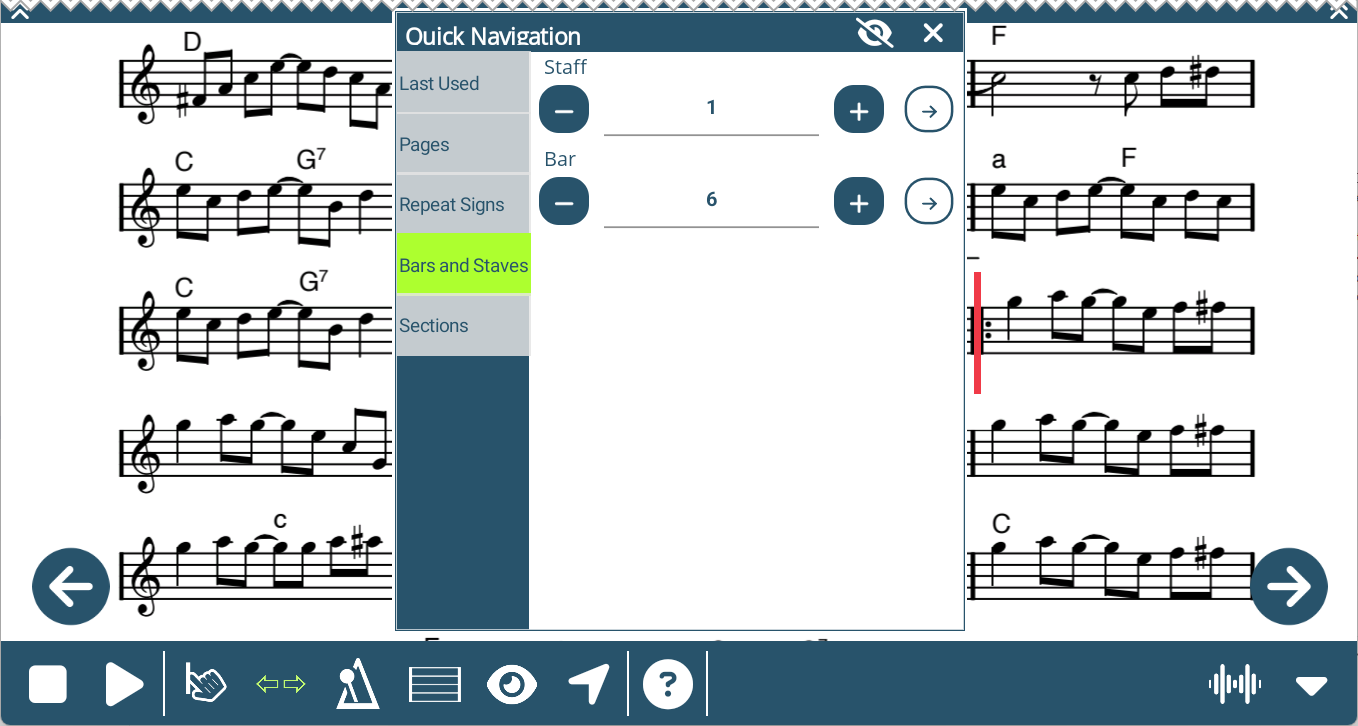
With the fully marked up score you can also use the quick navigation feature ( in the bottom toolbar) to jump to specific staves or bars.