So far you have seen how to use a metronome to accompany yourself.
With the following steps you will learn how to use an audio file to accompany your score.
- Tap on
 in the lower toolbar to open the timeline of the song.
 - Tap on
 on the left side of the timeline to select an audio file. Just like you did when opening a score you can load the file from your local device or from available cloud sources.
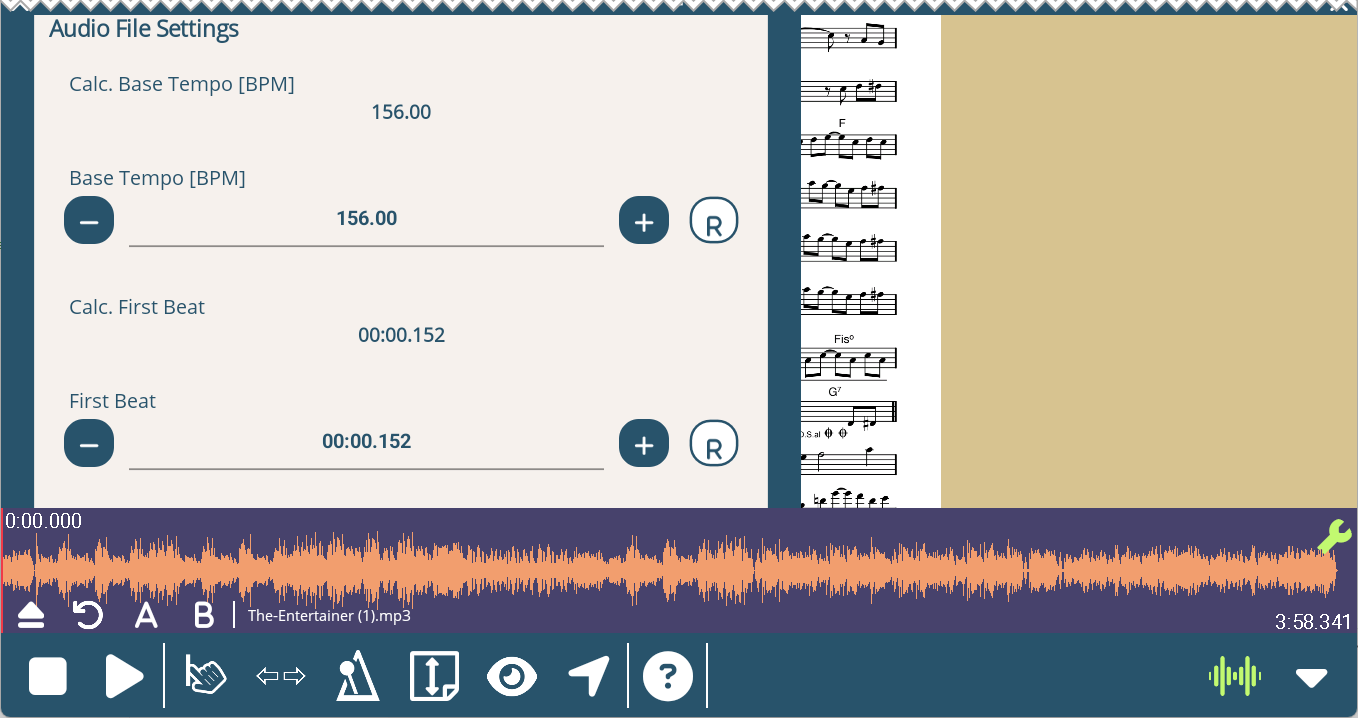
 - After the file is loaded, Five Lines analyzes the audio to determine the tempo and the timing of the first beat. Both of these values are automatically applied to the settings of the current score.
- Now you can start playback by pressing the play button
 in the bottom toolbar. You will see that the cursor now follows the audio playback according to the tempo and timing you just imported from the audio file.
 - If necessary, you can adjust the tempo and the timing of the first beat manually by pressing the
 button on the timeline.
 - The calculated tempo and timing of the first beat is always displayed before the corresponding setting. You can press the "R" button to reset the value to the calculated value.
- You may want to turn off the metronome while playing to an audio file: Tap
 in the bottom toolbar.
If you select a slower or faster tempo percentage when playing the score, the playback speed of the audio file will be adjusted accordingly without changing the pitch.
Note: If the recording does not follow a constant beat, you can adapt by placing tempo changes in the score.
The images show screenshots of the timeline and the settings.
In the next step we will show you more features you can now use with a fully marked up score.