In this step we will show you how to import songs into the app. You can import songs from your local storage or SD card, or from a cloud service.
For using a cloud service, make sure the corresponding app is installed. So if you want to use Google Drive, the Google Drive app needs to be installed, if you want to use Dropbox, the Dropbox app needs to be installed, and so on...
Also make sure you have entered your credentials into the app of the cloud service.
- Tap on Import Song

- The file selection screen opens
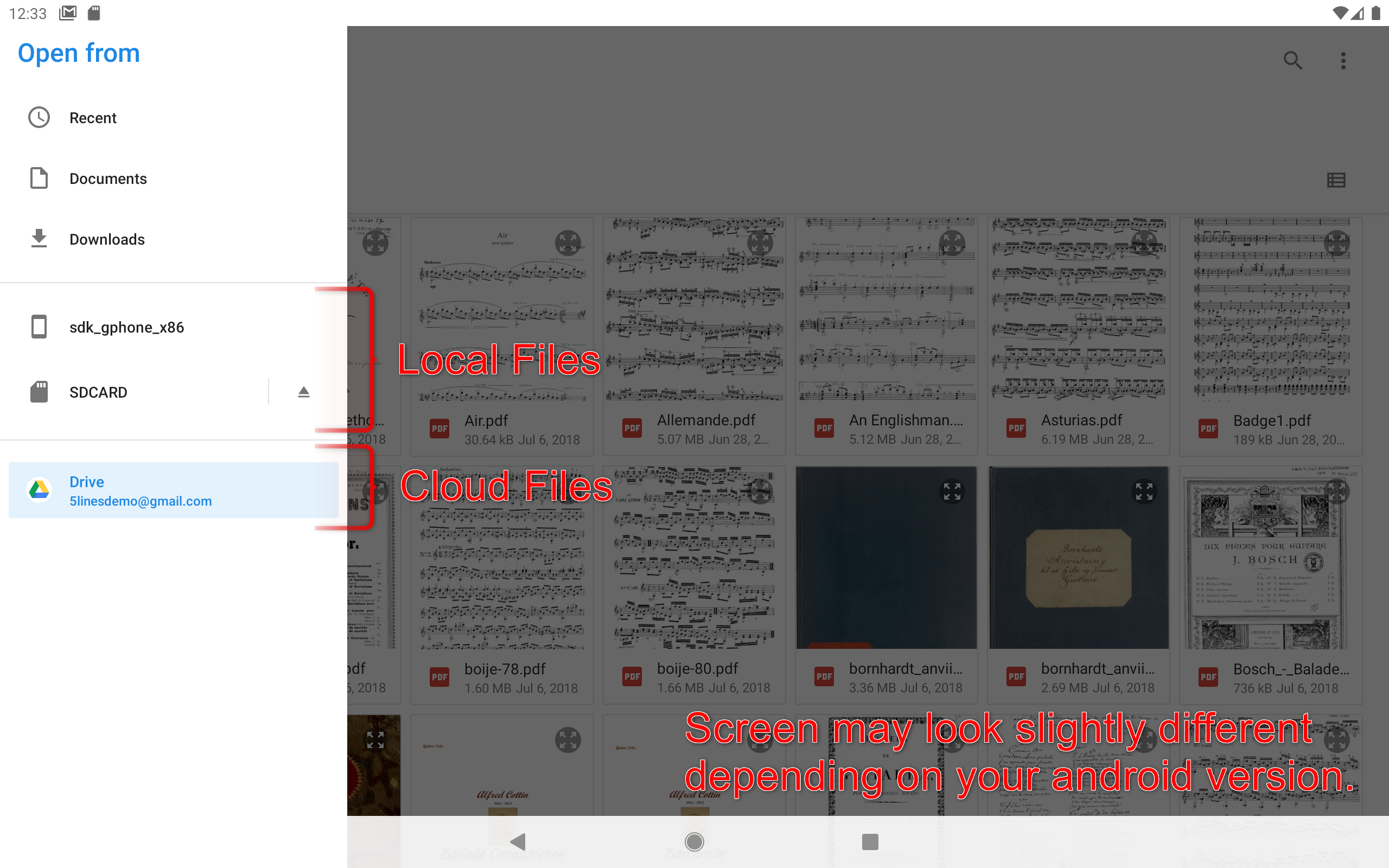
- If it is not already showing, tap on the top left hamburger symbol to show the "Open from" menu
- Select your desired source location on your local device or on a cloud storage (e.g. Google Drive, Dropbox, OneDrive, etc.)
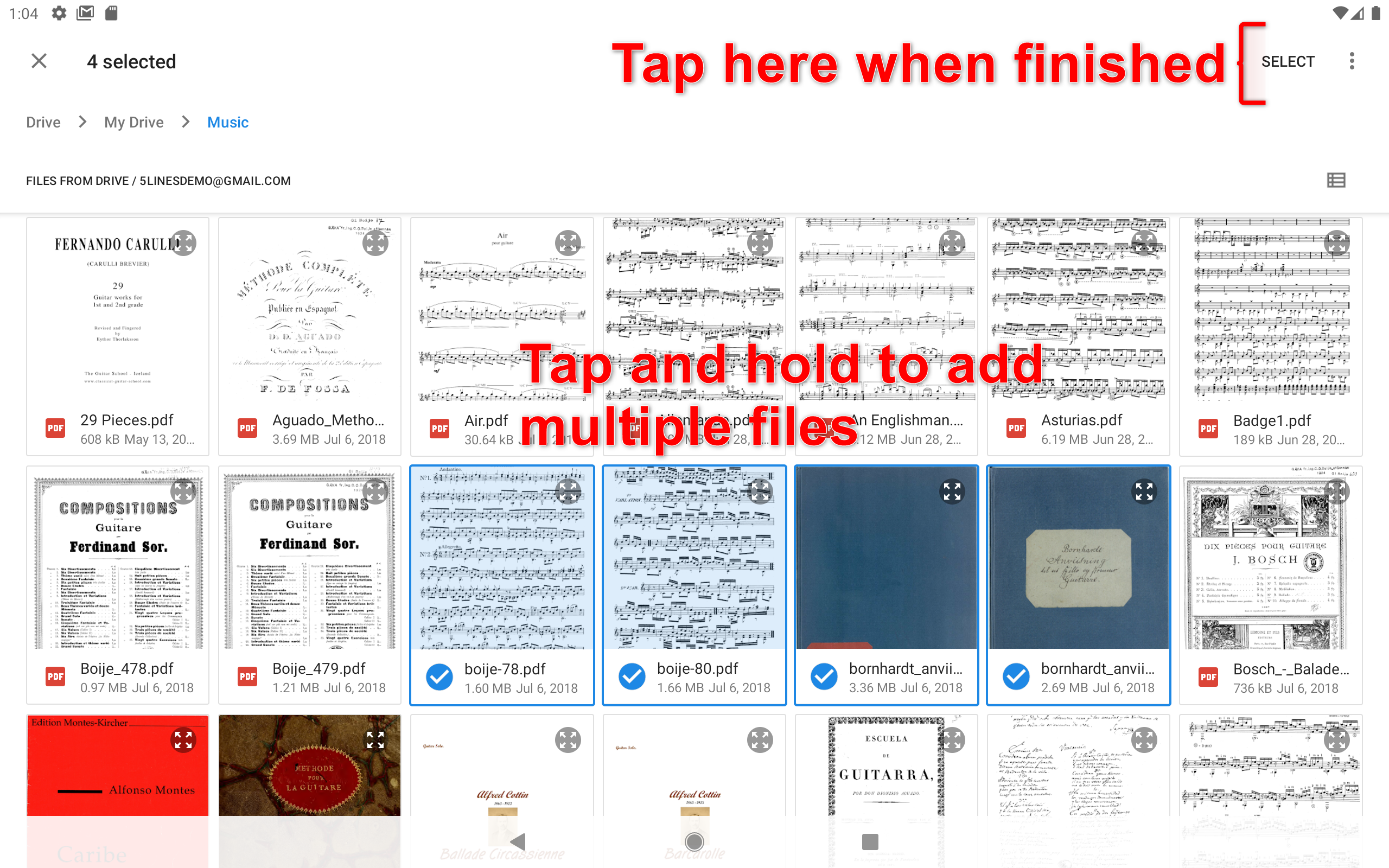
- Select one or more files to import
- Tap shortly on a file to import and open a single file
- Tap and hold on a file to select multiple files. When you are done selecting files, tap on the Select button in the top right corner.
- If you select a single file...
- If the file is a PDF, the file will be imported and opened directly.
- If the file is an image file, you will be asked if you want to add more pages to the song.
- If you select multiple files the files will be imported into your library as separate songs.
Note: You can only merge multiple image files into one song, if you select a single file first.