Your songs and all markup an anntotations that you have added, are saved locally on your device.
To make sure you don't lose your data in case your device is lost or damaged, you can create backups of your data.
Furthermore, you can restore your data from a backup in case you have installed the app on a new device or have reinstalled the app.
Note: Backups are not created automatically. You have to create backups manually.
The backups are stored in Google Drive. Therefore, you need to have a Google account in order to use this feature.
Creating a Backup
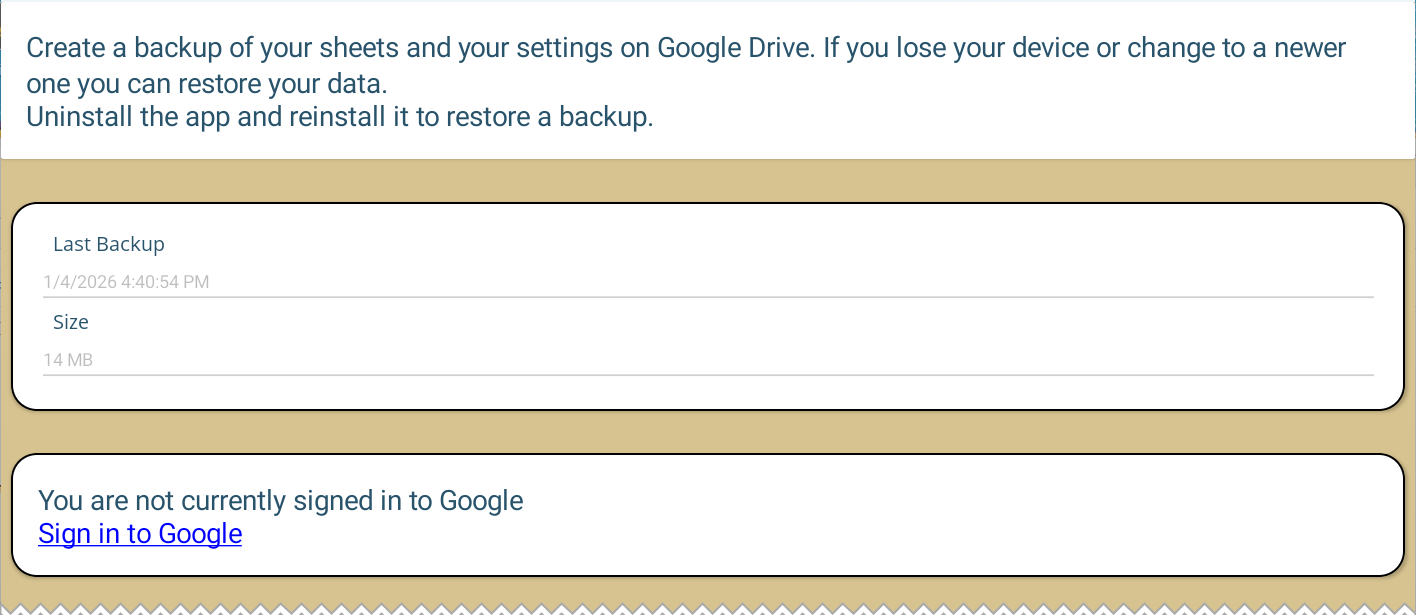
- On the start screen tap on Backup
 .
. - If you see a box "You are not currently signed in to Google" tap on Sign In to Google and follow the instructions to log in to your Google account.
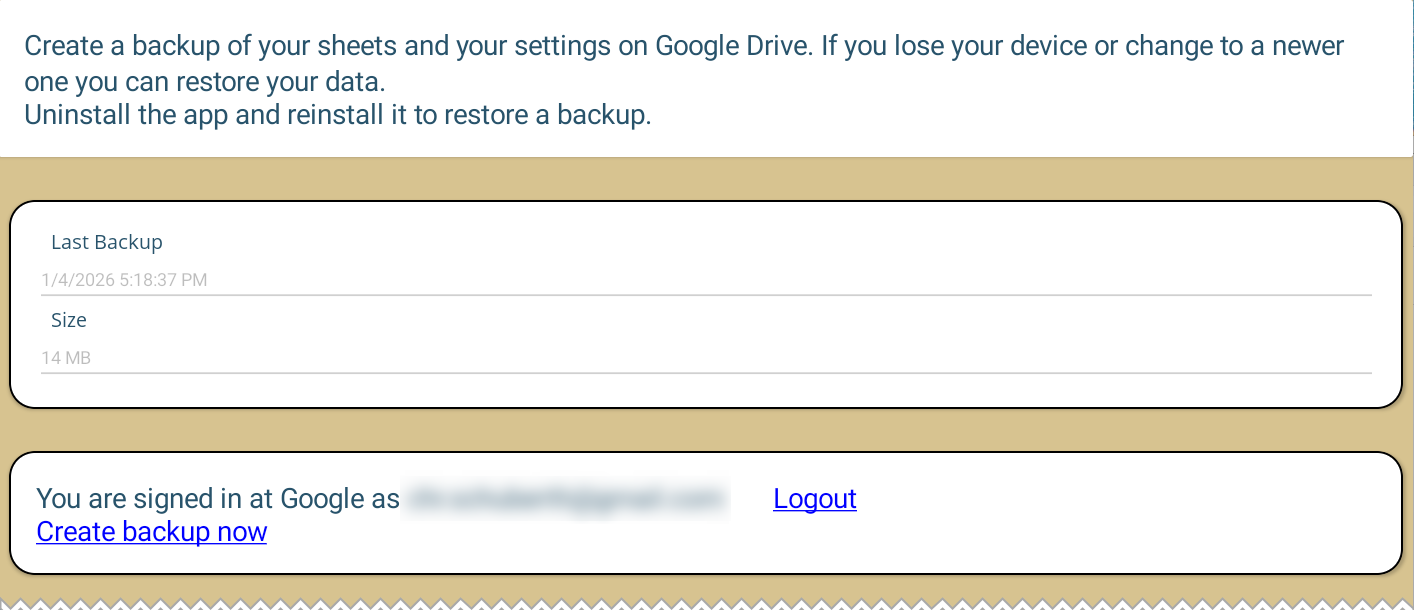
- If the sign in is successful, you should see the text "You are signed in at Google as [your email address]".
- Tap on Create backup now to create a backup. Depending on the amount of data, this might take a few minutes.
- If the backup was successful, you should see the current date under Last Backup.
Note: The backup file is stored in an invisible folder in your Google Drive, so it is not possible to access the backup from the Google Drive app or website.
Restoring a Backup
Restoring a backup is only possible after a fresh install of the app.
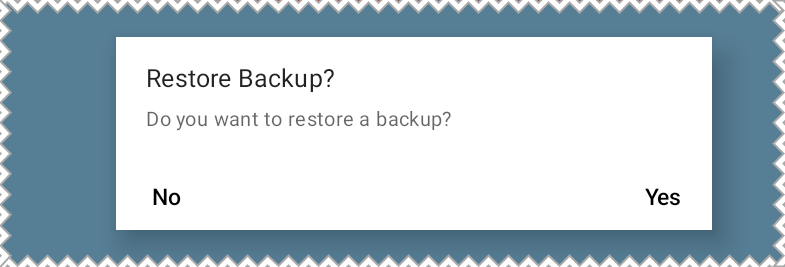
- After you have installed the app, you will be asked if you want to restore a backup.
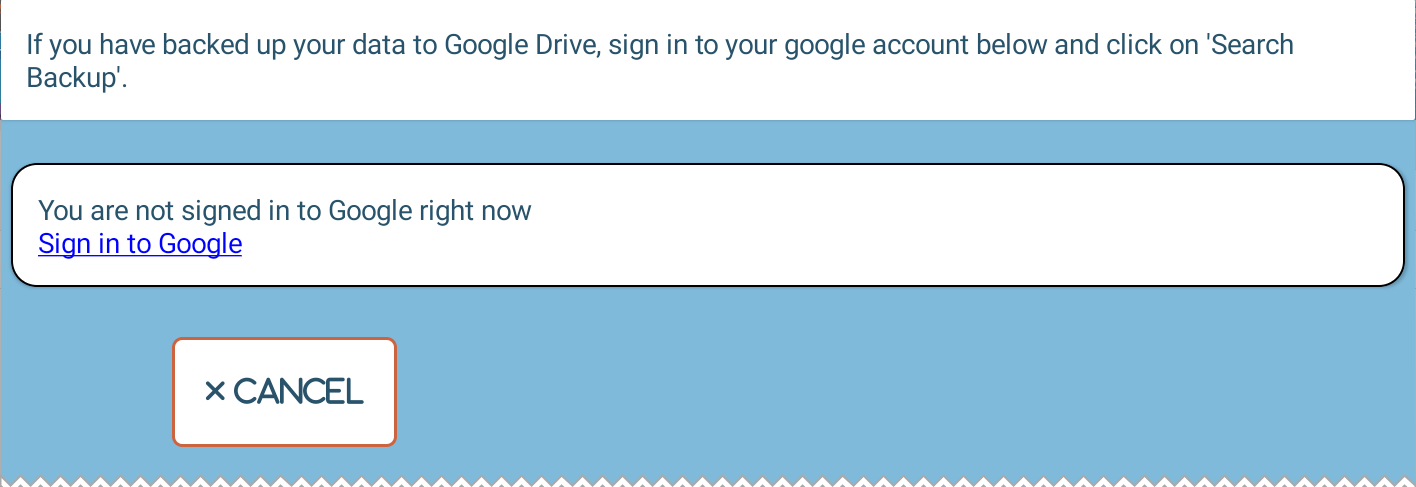
- If you have confirmed the app shows the restore screen.
- If you see a box "You are not not signed in to Google..." tap on Sign In to Google and follow the instructions to log in to your Google account.
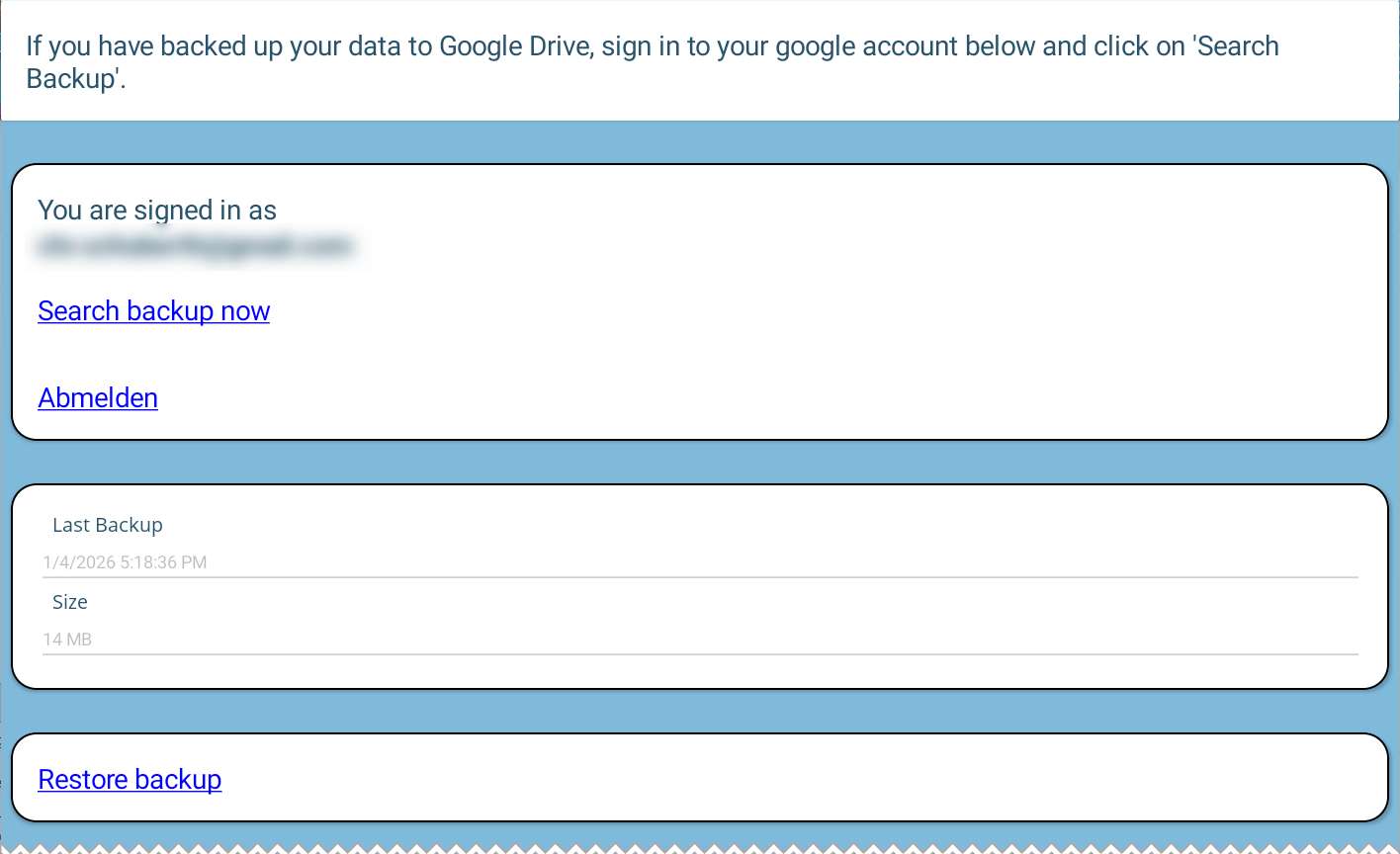
- Tap on Search backup now.
- If a backup can be found in your Google Drive, you should see the date and size of the backup.
- Tap on Restore backup to restore the backup. Depending on the amount of data, this might take a few minutes.
- After the restore is complete, the app will restart and your data should be restored.