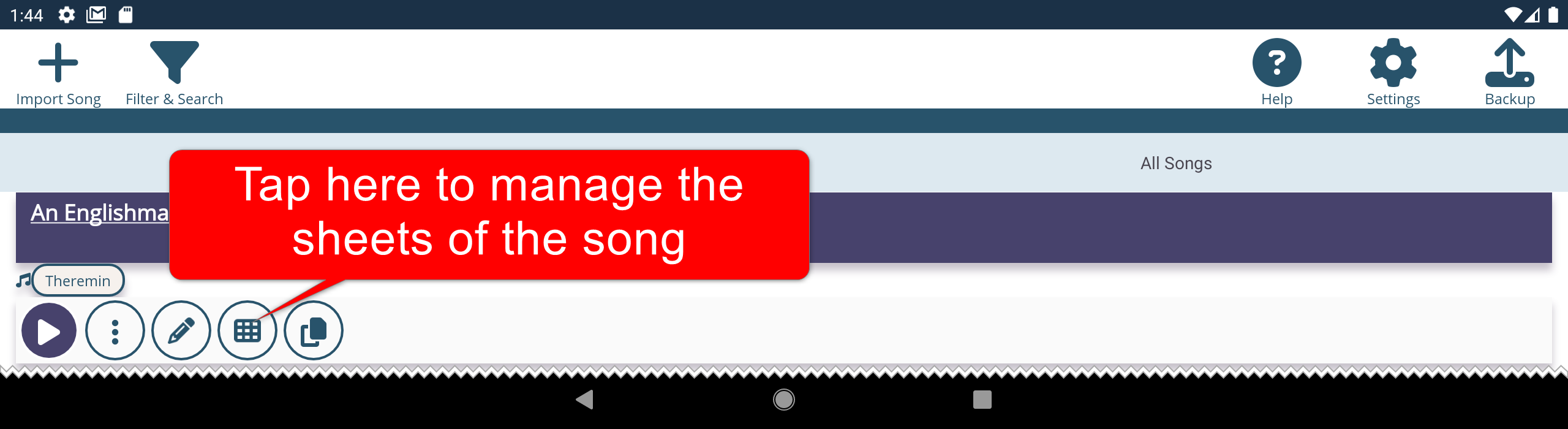
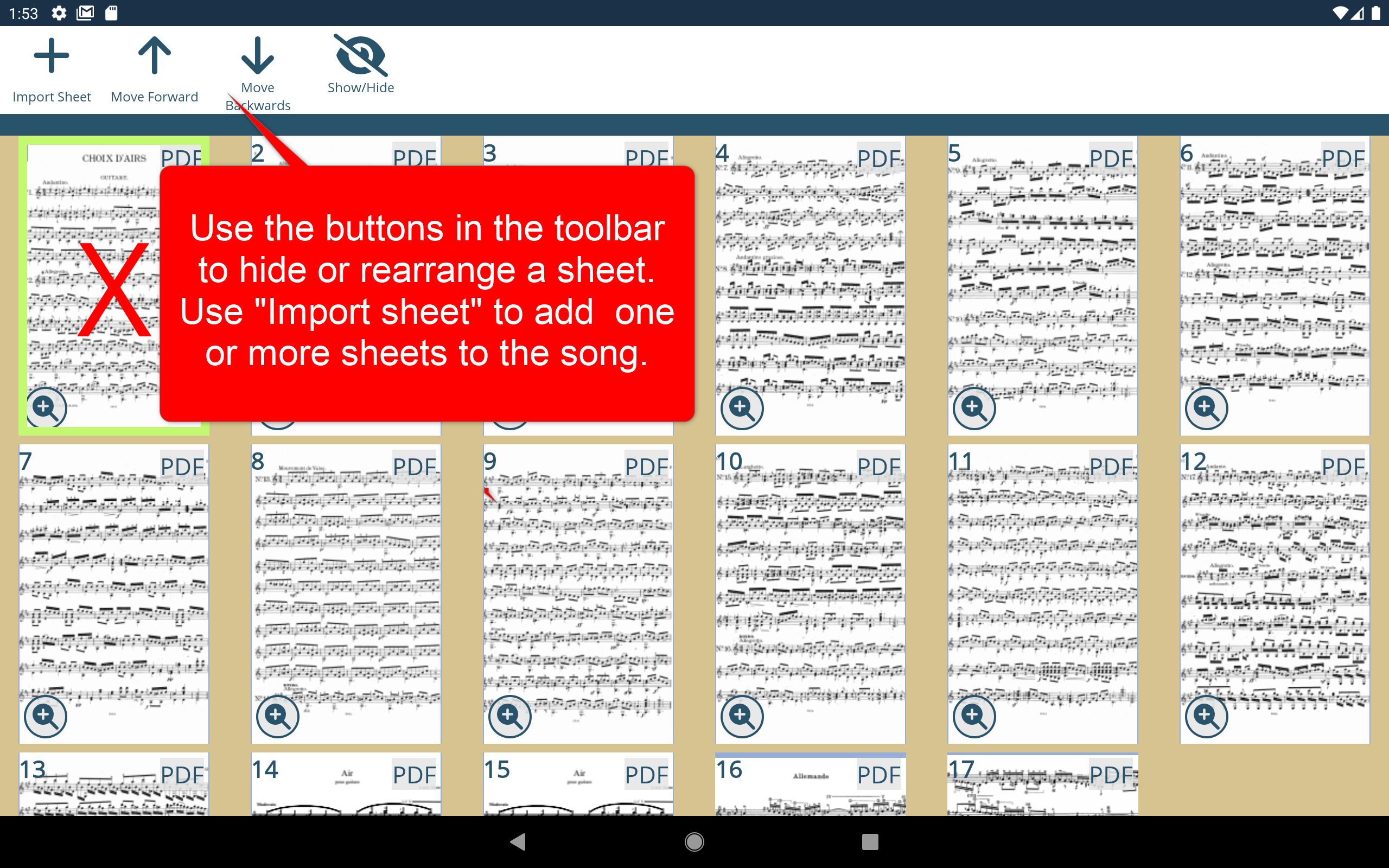
After you have imported a song, the sheets of the song can be hidden, reordered, or you can add additional sheets to a song.
Tap on  to go to the sheet management screen for a song.
Tap on a sheet to select it. The selected sheet is marked with a light green border.
Tap on Show/Hide  in the toolbar to hide the selected sheet. The sheet will be removed from the song view, but not deleted. You can always restore it by tapping Show/Hide again.
Select another sheet and tap on Move Forward  or Move Backwards
  to change the order of the sheets.
You can add additional sheets by tapping on the Import Sheet  button in the toolbar. If you select a PDF all pages of the PDF will be added to the current song. You can also import multiple documents. Then all pages of all documents will be added to the current song.
Also it is possible to combine image files with PDFs into one song.