In this step we will show you how to create setlists from your existing songs.
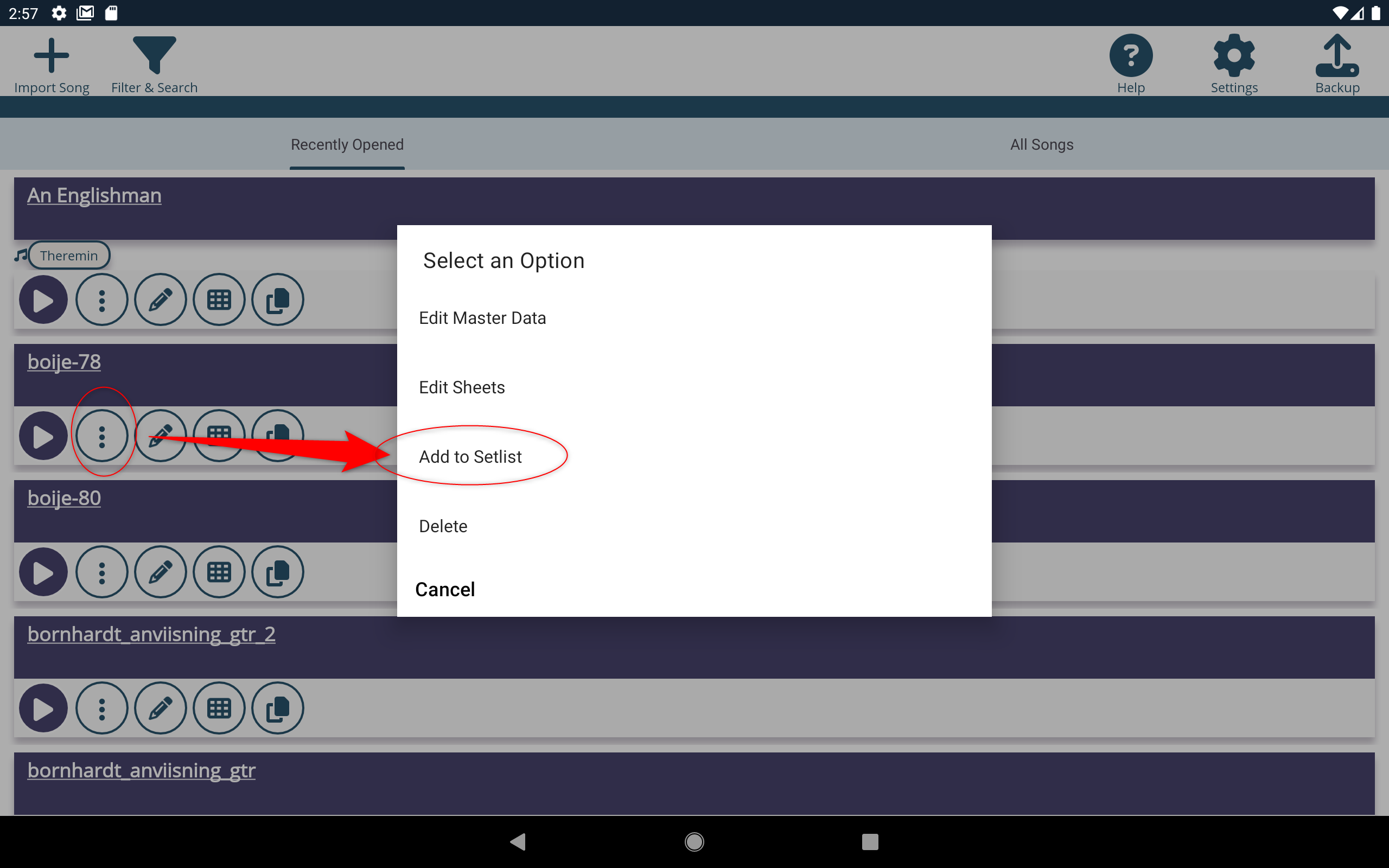
On the first song to be added, tap on  and select Add to setlist.
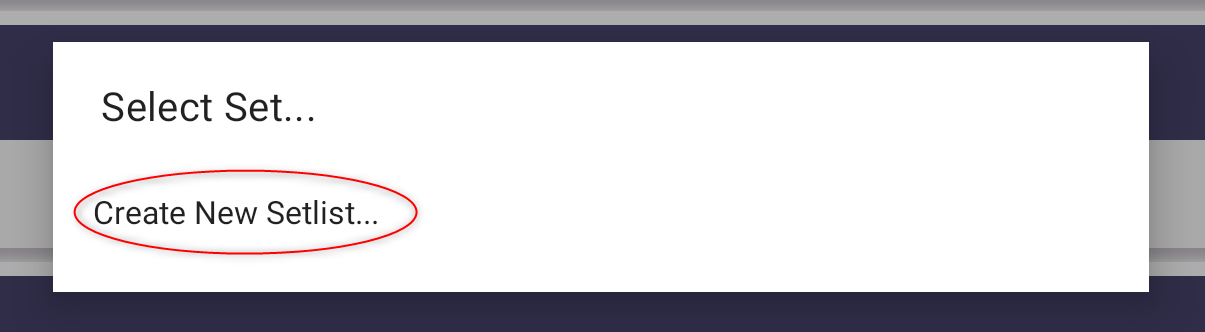
You will be prompted to create a new setlist or add the song to an existing setlist. Select Create New Setlist...
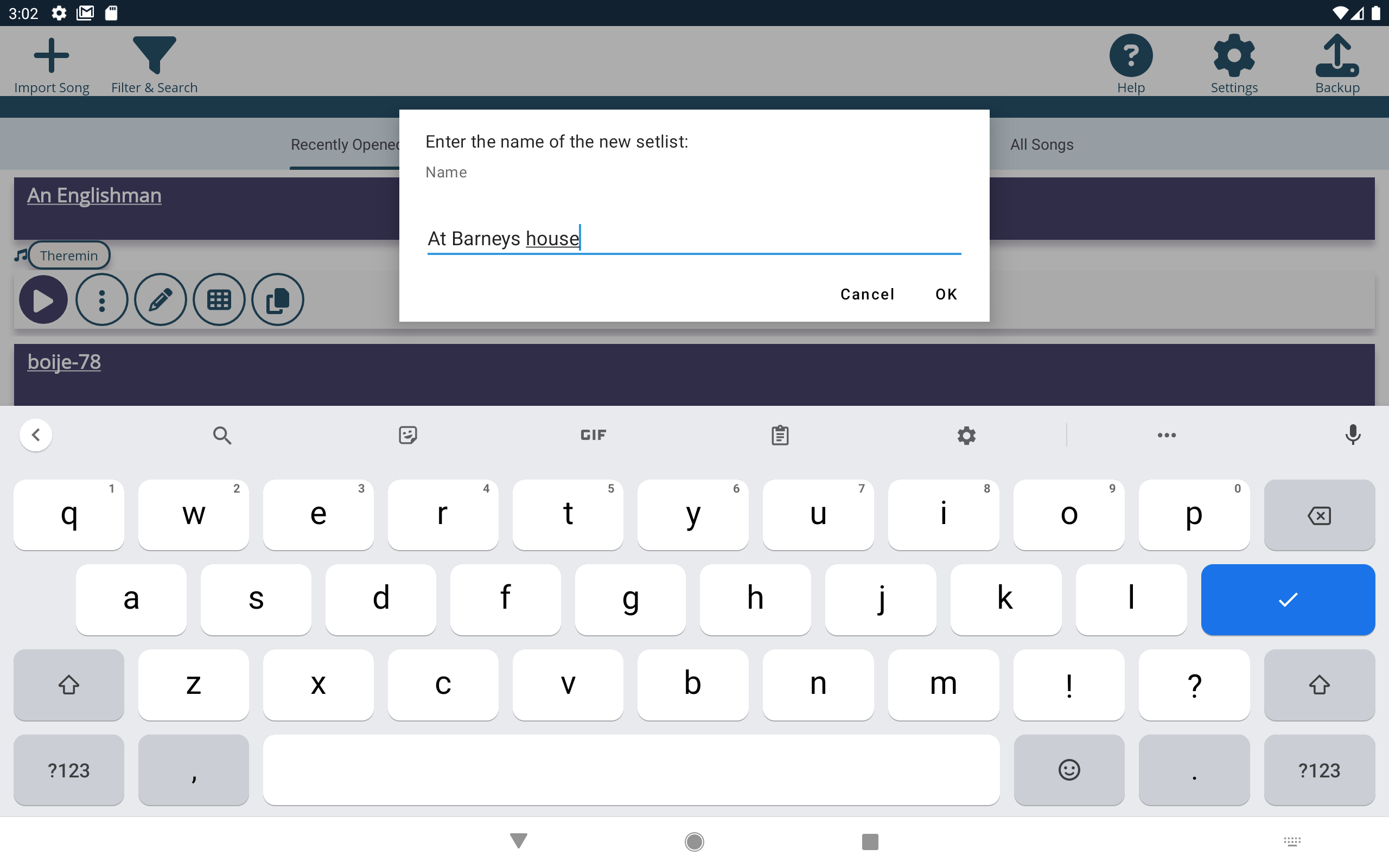
Enter a name for your new setlist and tap OK.
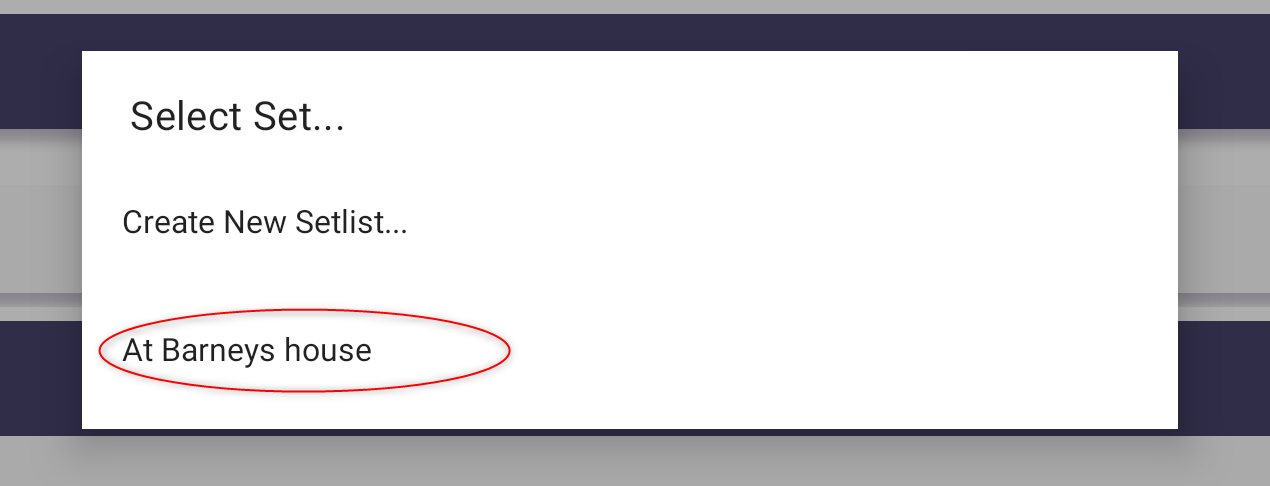
Tap on on a different song, and select Add to setlist again. Now you can select the existing setlist to also add this song to the same setlist.
Repeat this process for all songs you want to add to the setlist. Don't worry about the order of the songs in the setlist, you can rearrange them later. Note that it is also possible to add the same song multiple times to a setlist.
After you have created a set it appears alongside the existing songs and other setlists in the Recently Opened and All Songs sections.
Tap on the edit button  to edit the name of the set and apply genres, instruments and tags, just like to edit a song. These will also be used by the Search & Filter function.
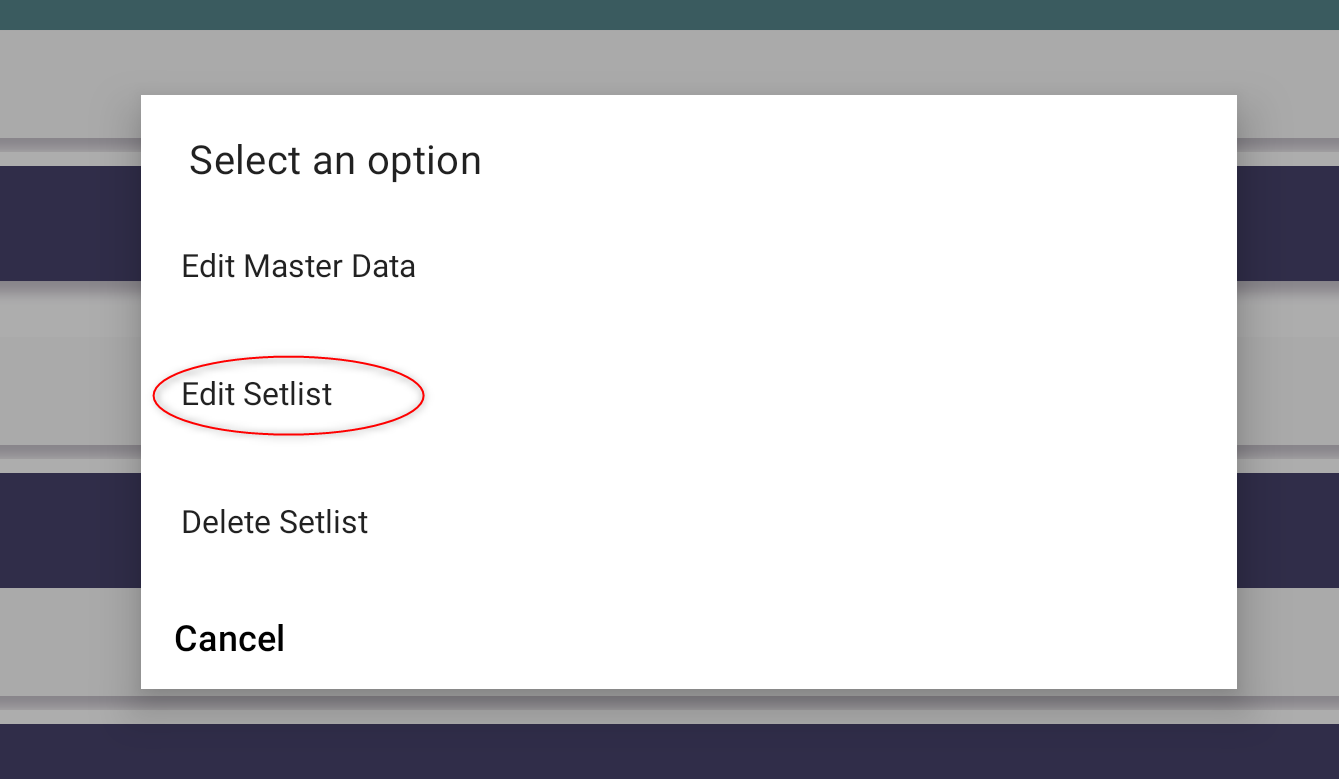
To rearrange the songs in the setlist, tap and select Edit Setlist. In the following screen you can move songs up and down using the respective buttons and remove songs from the setlist.