In Five Lines you can add various annotations to your songs, such as text, musical symbols, and free hand drawings. You can also highlight important parts of your score.
All annotation tools can be found in the Annotations  menu accessible from the top toolbar.
Musical Symbols
- With the annotations submenu open, you can select further submenus for groups of musical symbols:
 Notes
Notes Accidentals
-
 Ornaments
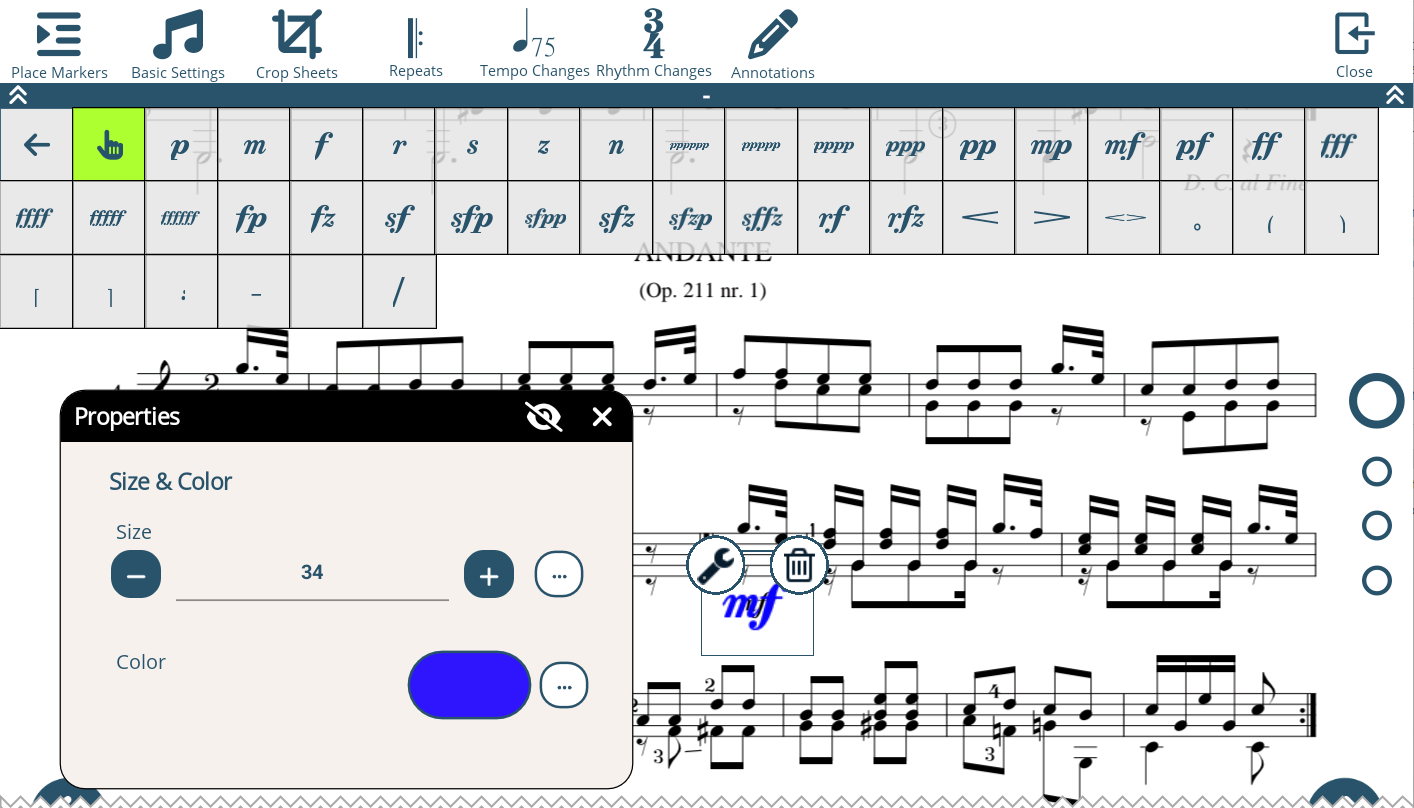
  Dynamics
-
 Repeats (Note: only use these for pure annotation purposes. They will not afffect the cursor and metronome in automatic scrolling)
 -
 Rests
Rests -
 Clefs
Clefs -
 String and plucked techniques
 - From one of the submenus select the symbol you want to add.
- Then tap on the position in the score where you want to add the annotation.
- To adjust the color and size of the annotation, tap and hold on the placed symbol. Then tap on the little properties button
 on the symbol. You can drag the properties window to any position on the screen.
 - After tapping and holding the symbol you can also move the symbol, and delete the symbol again by tapping on the trash can icon
 .
.
Text Annotations
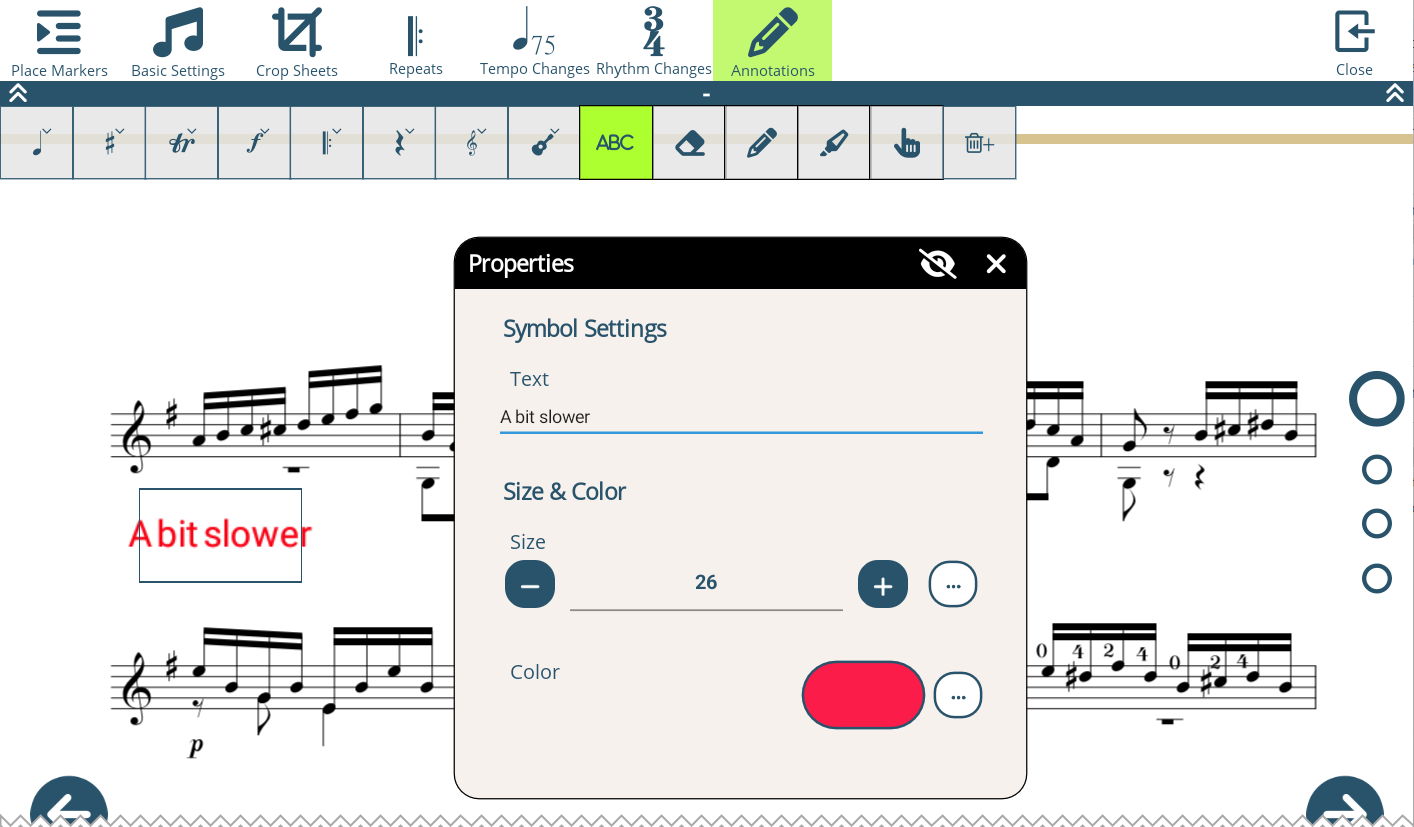
- Tap on the text icon ABC in the annotations submenu.
- Tap on the position in the score where you want to add the text annotation.
- Enter the text in the properties dialog that opens after placing the text.
- Just with the other annotations and symbols, you can move, edit, or delete text annotations by tapping and holding on them.
Free Hand Drawings
You can draw free hand annotations with your finger or a stylus.
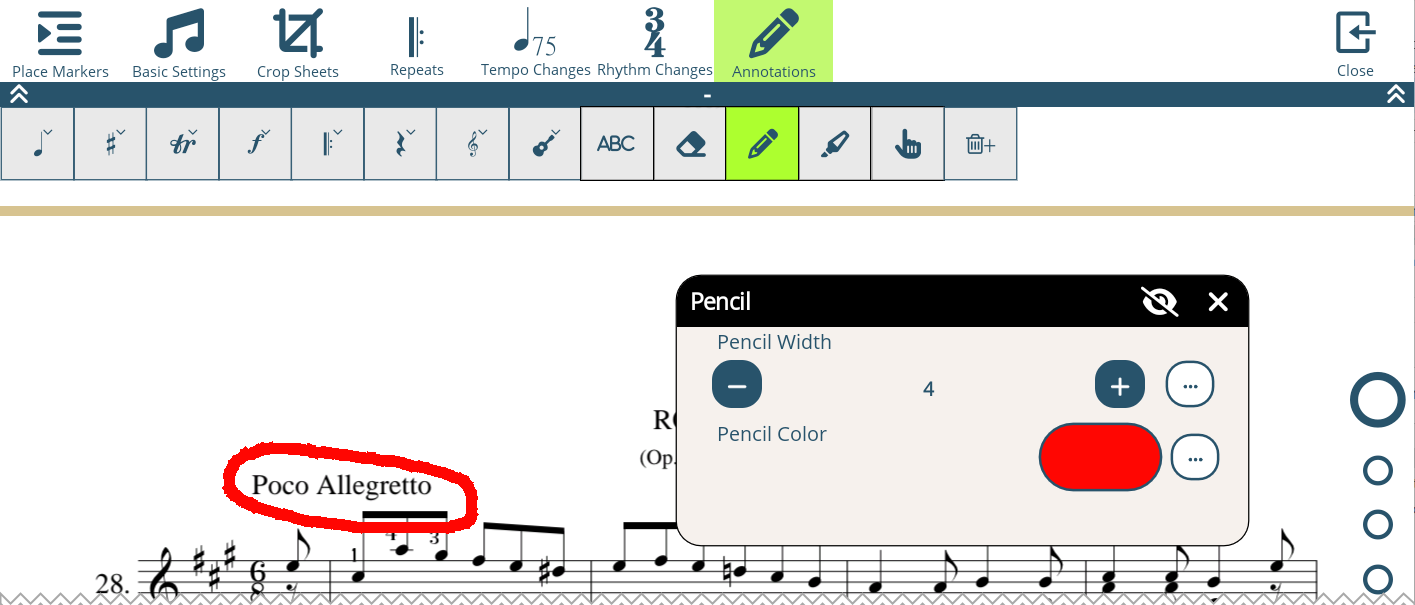
- Tap on the pencil icon .
- Draw your annotation on the score with your finger or a stylus.
- In the Pencil dialog, you can adjust the color and width of the stroke.
- To remove a free hand drawing you can use the eraser
 . Just tap on the eraser in the annotations toolbar and then move your finger over the strokes you want to erase.
Note: If you need to scroll the page again while drawing, tap on the hand button  in the annotations submenu to switch to scrolling mode.
Highlighter
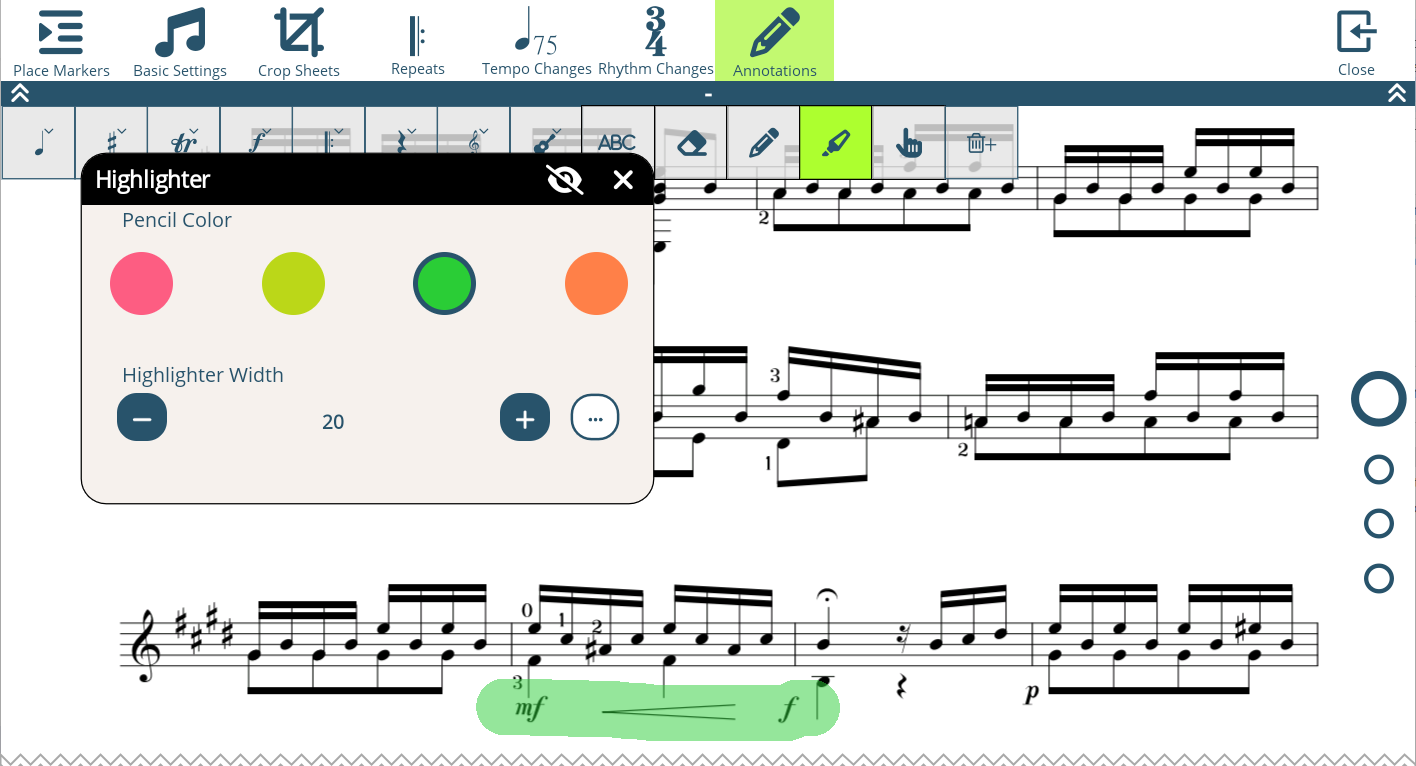
You can highlight important sections of the score with a translucent color.
- Tap on the highlighter icon
 in the annotations submenu.
 - Move your finger over the section of the score you want to highlight.
- In the Highlighter dialog, you can adjust the color and width of the highlighter stroke.
- To remove a highlighter stroke you can use the eraser . Just tap on the eraser in the annotations toolbar and then move your finger over the highlighter strokes you want to erase.
To remove all annotations from the score you can use the Delete All button +.