You already learned how to turn pages with the arrow buttons. Additionally to that you can jump directly to specific locations in your score.
To do this, tap on Quick Navigation  in the bottom toolbar.
Select Pages on the left side. Now you can directly jump to the top of the selected page.
If you have already marked the staves and bars in your score (see our Tutorial here) you can also jump to a specific line or bar, by selecting Bars and Staves on the left side.
If you have marked repeat signs, you can jump directly to their locations by selecting Repeat Signs on the left side. (See our tutorial here)
In case you have used the songbook feature of the app (see our Tutorial here) you can change to a different song within the song book by selecting Sections on the left side.
Navigating within a setlist
You can also use the Quick Navigation feature to jump to a song in a setlist. If you have opened a setlist, select Setlist on the left side, and you see the list of songs in the setlist. Tap on the arrow to the right to open a song.
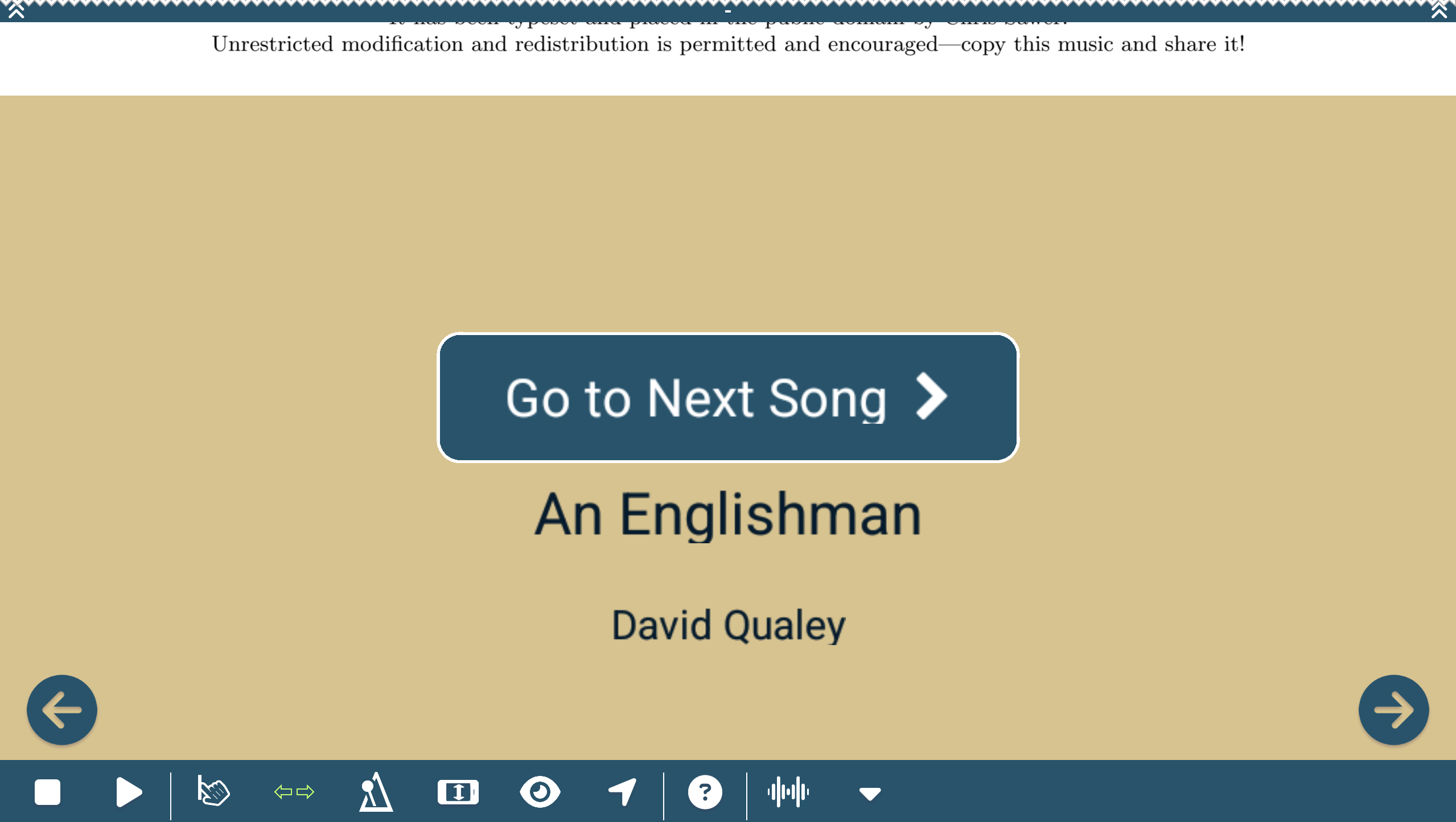
To just change to the next song in the setlist, you can also scroll all the way down to the last page of the song. Under the last page you will find a button that takes you to the next song.
And vice versa, you can go to the previous song by scrolling to the first page of the current song and tapping the button over the top border of the first page.